
Elite Animation Academy • Photoshop • AI
Photoshop AI Just Leveled Up: What Beginners Should Learn First (and What Pros Do Differently)
Photoshop’s latest generative updates are making results cleaner and iteration faster—so students learn smarter, and pros polish with fewer detours.
The quick take
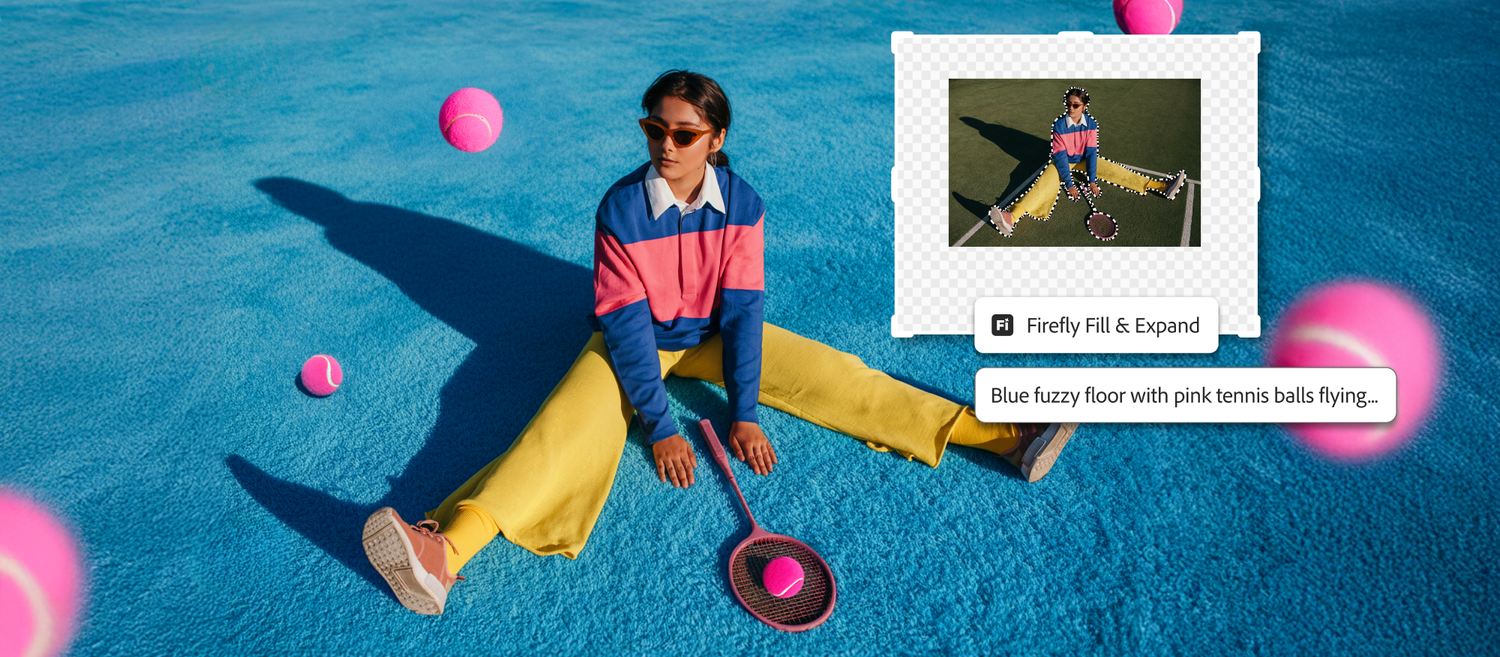
- Generative Fill / Expand continues improving for realism and control, with stronger quality and more usable results.
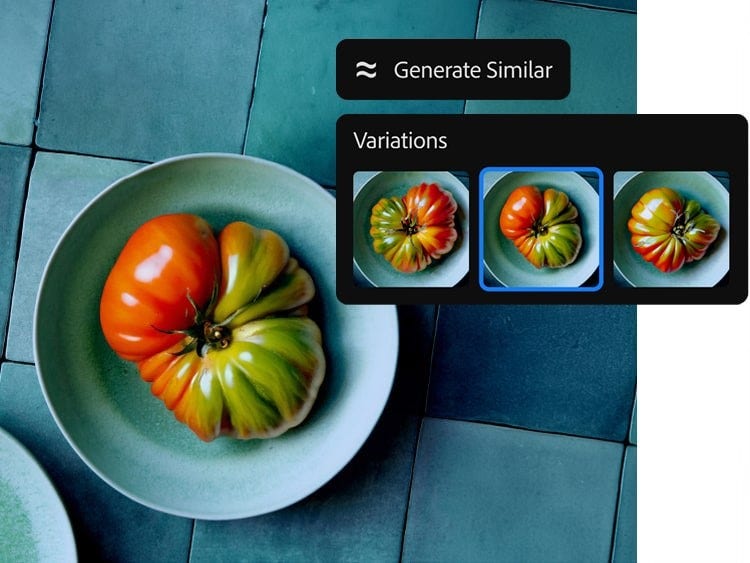
- Generate Similar helps you explore variations quickly—great for concepting, scene problem-solving, and design exploration.
- Photoshop supports model choice within Generative Fill workflows (Firefly and partner model options), which can affect how results look and behave.
- Best output still depends on fundamentals: selections, masking, lighting logic, and cleanup.
PipCast (listen)
Press play for the under-3-minute audio summary.
Why this update matters (and why it’s trending)
The conversation around Photoshop AI has shifted from “Can it do it?” to “Can it do it cleanly, at usable resolution, and with consistent control?” Recent Adobe updates emphasize improved quality and faster iteration in generative workflows, which matters most when artists need believable detail, fewer artifacts, and repeatable results.
Here’s the learning takeaway: AI doesn’t replace fundamentals—it makes fundamentals more valuable. The stronger your selections, masking, and visual logic, the more professional your AI-assisted work looks and feels.
Pip Tip: Don’t chase “perfect prompts.” Chase perfect control—clean selections and lighting logic beat clever wording every time.
A learning path: early learners → seasoned pros
1) Early learners & first-timers: control before creativity
If you’re new (or teaching a young artist), the goal isn’t to generate the coolest image—it’s to build habits that keep results clean, safe, and easy to improve.
- Selections + masks: start with Quick Selection or Lasso, then refine edges.
- Layer discipline: keep edits non-destructive, name layers, and save versions.
- Prompt clarity: describe materials, lighting, and camera angle in simple terms.
Outcome: edits blend naturally instead of looking “pasted on.”
2) Intermediate creators: iterate fast, then clean it up
This is where Generate Similar becomes a real advantage: you can explore multiple believable directions, pick the best, and then polish with traditional tools.
- Variation loops: generate 4–8 options, choose 1, refine selection, repeat.
- Artifact cleanup: repair seams, shadows, and texture breaks manually.
- Consistency checks: match grain/noise, light direction, and edge softness.
Outcome: your work stops looking “AI-ish” and starts looking intentional.
3) Seasoned pros: choose the model, choose the purpose
Pros treat AI like a production tool: they choose the workflow that matches the job—concept, matte painting support, texture work, cleanup, or revision speed—then they finish with fundamentals so the output meets a professional standard. With model choice appearing in Generative Fill workflows, experienced artists can test different model behaviors depending on the look they need.
- Model intent: select based on realism, stylization, or consistency requirements.
- Resolution + compositing: prioritize usable detail, then integrate with classic retouch/paint.
- Documentation: keep layered files and track changes for clean revisions.
Outcome: faster ideation without sacrificing quality control.
Mini-workshop: a clean Generative Fill workflow
Try this short exercise. It scales from beginner control practice to pro-level iteration speed.
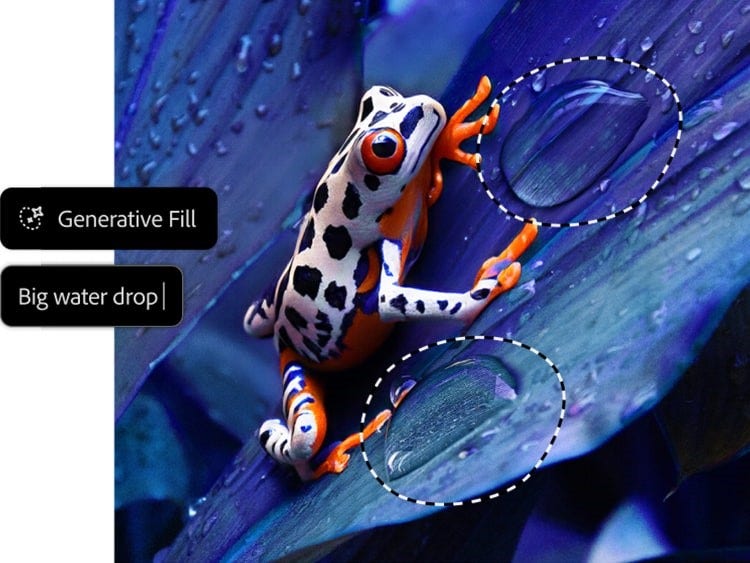
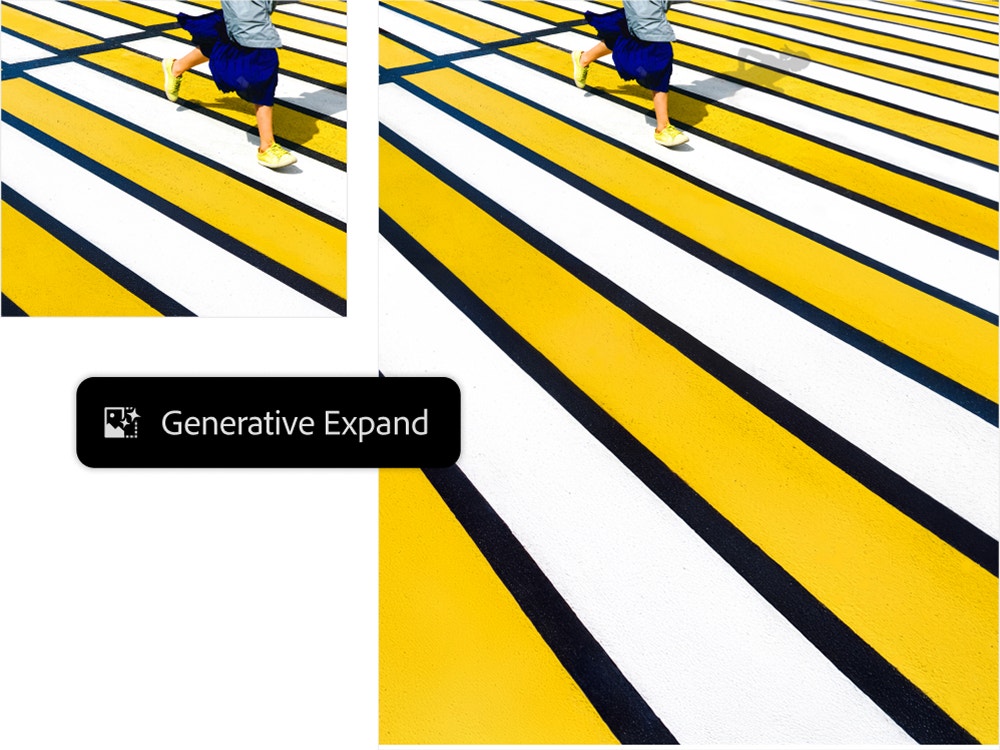
Pip Tip: If the result looks off, refine the selection and fix the lighting mismatch before you regenerate.
Watch: what’s new (fast overview)
If you want a quick visual rundown of the upgrade conversation, this explainer is a solid starting point.
Responsible AI (especially for students)
- Use AI for drafts and exploration, then build originality through decisions, design, and fundamentals.
- Avoid copying living artists’ signature styles for commercial work; develop your own visual identity.
- Keep layered files so revisions and improvements are transparent and teachable.
Keep creating with confidence
Elite Animation Academy helps students build real animation-driven digital art skills through fundamentals, creativity, and guided practice—online and in-studio.
Elite Animation Academy • Developing Young Minds Through The Art of Animation
Questions?
[email protected]
•
1.407.459.7959
FAQ
Is Photoshop AI “good enough” for real projects?
It can be—when paired with strong fundamentals. The best workflows use generative tools for ideation and targeted edits, then rely on classic Photoshop skills such as masking, cleanup, and lighting consistency to reach professional polish.
What should beginners learn before Generative Fill?
Clean selections and masking. If you can’t control the boundary of an edit, AI outputs will look messy. Learn to refine edges and keep edits non-destructive with layers.
What is Generate Similar used for?
It’s for fast variations—exploring multiple directions from a similar edit so you can pick the strongest option, then refine it with traditional tools.
Do different AI models change results?
Yes. Different models can produce different textures, realism, and stylistic tendencies. Model choice matters most when you’re aiming for a consistent look across multiple edits.
References & learning resources
- New Photoshop innovations (Adobe Blog, Jan 27, 2026): View source
- Get new variations with Generate Similar (Adobe Help, updated Feb 27, 2026): View source
- Edit images with Generative Fill (Adobe Help): View source
- Photoshop Generative Fill product page (Adobe): View source
- Video explainer: Watch


